Consulting Invoice Template — Excel
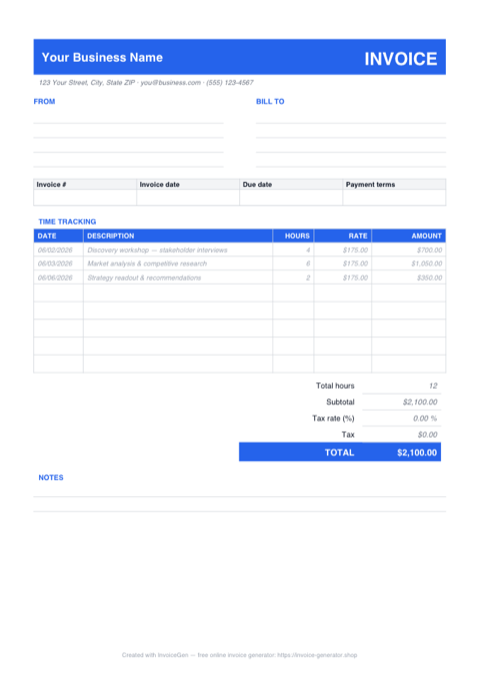
The .xlsx works like a timesheet that totals itself into an invoice. Each TIME TRACKING row multiplies Hours × Rate the moment both cells are filled, Total hours sums the period at a glance, and Subtotal, Tax, and TOTAL update with every entry. Three sample rows from a strategy engagement — discovery at 4 hrs, analysis at 6, the readout at 2, all at $175 — show the pattern before you overwrite them with your own work.
Why Excel for Consultants
Amounts compute only when an entry is real
Every Amount cell checks that both Hours and Rate are present — =IF(OR(C16="",D16=""),"",C16*D16) — and stays empty otherwise. The five spare rows print clean instead of as a column of $0.00, and a half-logged session can't sneak into the total.
Total hours sits right where clients look first
A dedicated =SUM over the Hours column lands just above the Subtotal, so the invoice answers 'how much time this period?' before anyone reaches for a calculator. It's the figure clients reconcile against your weekly status notes — and the sheet keeps it current automatically.
Per-row rates handle blended engagements
RATE is a column, not a single cell. Bill a workshop day at your facilitation rate, research hours at your standard rate, and a discounted retainer carve-out on a third line — each row computes against its own rate, and everything still rolls into one Subtotal.
Tax is one highlighted cell, not a formula hunt
The shaded Tax rate cell is percent-formatted: type your rate and it reads as a percentage, the Tax row computes Subtotal × rate, and TOTAL follows instantly. Leave it at zero for engagements where tax doesn't apply or is handled on the client side.
Invoicing Challenges for Consultants
Hourly vs. Retainer Billing Confusion
Some clients want hourly transparency while others prefer a predictable monthly retainer. Switching between billing models across clients — and sometimes within a single engagement — creates invoicing headaches.
Scope Creep Eating Into Margins
That quick call turns into a two-hour strategy session. Without tracking and invoicing every hour, scope creep silently erodes your profitability across engagements.
Invoicing International Clients
Cross-border consulting means dealing with multiple currencies, varying tax rules, and different payment methods. A single-currency invoice template does not cut it.
Consulting Excel Invoicing Tips
Log time entries as the engagement runs, not at month-end
Keep the file open during the engagement and add a dated row after each working session — the dates in the first column become a defensible time log if hours are ever queried, and month-end invoicing shrinks to setting the invoice number and date. If you outgrow the eight entry rows, insert new rows in the middle of the table, not below it, so the SUM ranges behind Total hours and Subtotal stretch automatically.
Reference Your Engagement Letter
Include the engagement letter or SOW number on every invoice. This ties each charge back to an agreed scope and makes disputes far less likely.
Log Time Contemporaneously
Record hours as you work, not at the end of the week from memory. Contemporaneous time entries are more accurate and more defensible if a client questions a charge.
Set a Retainer Reconciliation Cadence
For retainer clients, reconcile unused hours monthly. Show the retainer amount, hours used, and any rollover or overage on each invoice so there are no surprises.
Use the Client’s Currency
Invoicing in your international client’s local currency removes friction from the payment process and shows cultural sensitivity — a small gesture that strengthens the relationship.
What to Include on a Consulting Excel Invoice
- Engagement or SOW reference number
- Date range for the billing period
- Itemized time entries with descriptions
- Hourly rate or retainer amount
- Hours used vs. retainer hours included
- Expenses incurred (travel, software, etc.)
- Currency and applicable tax or VAT
- Payment instructions including wire details for international transfers
Generate Your Consulting Excel Invoice Now
Create Invoice — Free, No Sign-UpFrequently Asked Questions
Will the formulas survive LibreOffice Calc, Apple Numbers, or Google Sheets?
Which versions of Excel open this .xlsx?
Why is the Amount column blank on unused rows, and can I type into it?
Related Invoice Tools
Consultants Invoice Generator
Free invoice generator for consultants. Bill hourly or on retainer, manage scope creep, handle international clients, and create professional PDF invoices in seconds.
Excel Invoice Template
Free Excel invoice template library — download, customize, and send.
Consulting Invoice Template
Free consulting invoice template for hourly, retainer, and project billing. Track engagements and download professional PDF invoices instantly.
Consulting Invoice — PDF
Free consulting invoice PDF with a date/hours/rate time-tracking table, FROM and BILL TO blocks, and a notes area. Fill it on screen, print it, or email it.
Consulting Invoice — Word
Editable Word .docx consulting invoice — overtype the placeholder firm and client blocks, drop your logo in the blue banner, recolor the accent, and export a PDF.
Auto Repair Invoice — Excel
Free auto repair invoice template in Excel (.xlsx) with separate parts and labor sections, self-totaling amount formulas, and an editable tax-rate cell.
Cleaning Invoice — Excel
Download a free cleaning invoice template in Excel (.xlsx) with service date and frequency columns, blank-safe amount formulas, an editable tax cell, and live totals.
Freelance Invoice — Excel
Free freelance invoice for Excel (.xlsx). Hourly and flat-fee sections feed one subtotal, amounts stay blank until filled, and a cell sets the tax rate.